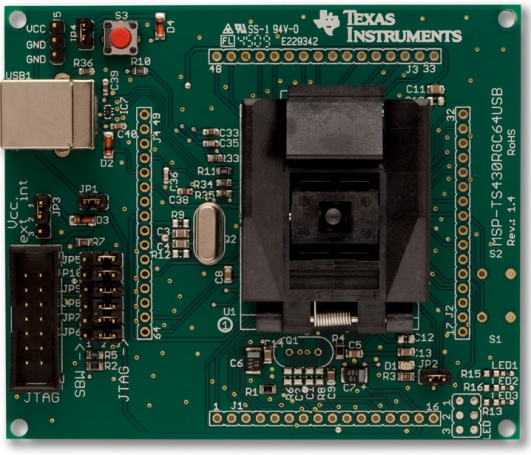
So, with a bit of playing around I have my LaunchPad blinking happily and I am going to show you how I did it. People who really know there stuff might not like how I’m doing this, but we will progress to creating our own project from scratch soon.
Before we start I’m going to say right now the demo temperature sensing program TI provides is hard to work with when starting an example project. It’s cool since it shows off what the chip can do, but it's hard to work modify. Also, I will be using Code Composer Studio because it has a larger program size limit that IAR. This doesn't matter with the current chip, but it will for others I will use in future posts.
Step 1 – Installation and Example Code
Download and install
Code Composer Studio. If you are using Windows 7 like I am make sure you don’t install it under Program Files, and install it somewhere like “C:\Texas Instruments”. Also, you probably don’t need to do this, but I kept my LaunchPad unplugged while I was installing everything.
Download the test project “
MSP-EXP430G2-Launchpad” and unzip it to a temporary folder such as one on your desktop.
If my links don't work, all of this is linked under the
LaunchPad Wiki.
Step 2 – Load the Project and Set it Up
Run CCS and you will be prompted where you want to put your workspace. Within one workspace you can have multiple projects so I recommend making a directory where you will keep all your different projects code. I chose to use this directory as default but you don’t have to.
Close the Welcome window.
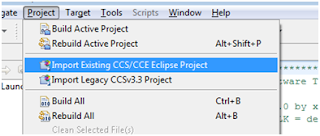
Now we are going to import the project. Go to Project --> Import Existing CCS/CCE Eclipse Project.
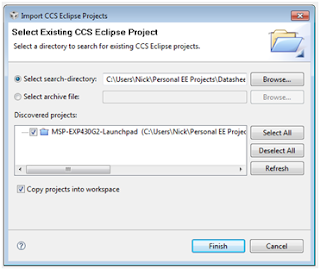
The MSP-EXP430G2-Launchpad project will show up, check the “Copy projects into workspace” and then click Finish.
On the left under the project box expand your project, and you’re going to want to delete “test_RX.c.old”. We won't be using it.
Double click on the file “MSP430F2012.ccxml”. This is the file which lets the compiler know which devices your project is being loaded on to. Click “Do not show this again” on the stupid Cheat Sheet thing on the right that popped up.
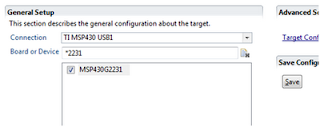
Type “*2231” in under the Board or Device, and then check the MSP430G2231. There is a chance that you might not need to do this, but I am a fan of selecting your device just in case, just one less thing to worry about being wrong. Again, I have no idea why they had this chip selected. I assume that you are using the chip that came plugged into your LaunchPad for now. In later tutorials we will be changing this to program different chips using the SBW. Click “Save Configuration”.
To keep ourselves sane, rename the .ccxml file according to “MSP430G2231”.
Now go to Project, and hit “Clean…”. I like to do this when I make any huge property changes, again this might not be necessary but follow me for now. A warning will pop up, continue to clean the project.
Step 3 – Use the Real Test Program
Open up main.c, you will now see a huge program that’s poorly commented. I’m still young, and hate commenting my code, but everyone should suck it up and do it. That is one of the most important things I feel everyone must do when writing code, comment well.
Under the code examples we downloaded before, under the folder named “C” there should be a file named “msp430x20x3_1.c”. Open this file in notepad or whatever editor you use. Copy all the code. Then past it into our main.c file after removing all the stupid temperature project code.
The comments at the start of the code should look like this. (My formatting is all messed up, I know. I just wanted to post this quickly, I can edit the fonts later.)
//******************************************************************************
// MSP430F20xx Demo - Software Toggle P1.0
//
// Description; Toggle P1.0 by xor'ing P1.0 inside of a software loop.
// ACLK = n/a, MCLK = SMCLK = default DCO
//
// MSP430F20xx
// -----------------
// /|\| XIN|-
// | | |
// --|RST XOUT|-
// | |
// | P1.0|-->LED
//
// M.Buccini / L. Westlund
// Texas Instruments, Inc
// October 2005
// Built with CCE Version: 3.2.0 and IAR Embedded Workbench Version: 3.40A
//******************************************************************************
This code is very nice and simple and is pretty well commented. What it does is toggle P1.0 which in this scenario, will blink an LED on the LaunchPad.
One thing we will need to change (which again, we might not have to, but I like to keep these things as correct as possible) is the #include header file.
Change it to this:
#include "msp430g2231.h"
Step 4 – Programming the LaunchPad
Now we are going to program the LaunchPad, but before we do I have a few comments. It seems like the pictures and schematics they provide on the LaunchPad Wiki site are a bit wrong. P1.0 is connected LED 1, which is Red. This is the LED we will be toggling. If it is green on your board, or anything else is funky or different, please post and let me know.
We now should plug in the LaunchPad, hopefully all your drivers install automatically because mine did. If you are using Windows XP I think you have to direct the installer to the files under the CCS install directory. Good luck.
The LaunchPad should have at the very least the power LED lit showing the device is powered and ready to go, you might have some blinking LEDs or something from what is already stored on there.
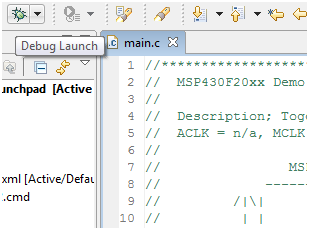
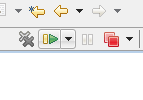
Click the little bug near the project menu called “Debug Launch”. A window should pop up which is compiling your code, and then a debug session should open up. If you have any errors either something is wrong with your driver, you didn’t follow my instructions correctly, or something else entirely. If you are having trouble, feel free to comment.
Nothing should be happening on the board yet though. What we want to do is now click Run, which will start the program on the LaunchPad. Now look down at the LED.
Congratulations, you have a blinking “Hello World” program working!
Step 5 – Modify and Have fun
Change the “i” value in the code to change how quickly the LED blinks, the bigger the number the longer the LED will stay on and off. You can also change the port to P1.6 to blink the other LED. Next blog post I will explain the code, and fun ways to modify it.
As always, comment away. If I have typos, formatting errors, or some wrong information please let me know. Hopefully this worked for you and I hope you’re now having fun with your LaunchPad.
-NJC