Friday, July 30, 2010

The LaunchPad's Example Project Ripped Open

In this post I present a broken down version of the LaunchPad's example project which only contains the software UART transmit functionality. Note: the code I present can not receive any UART data. The next post will discuss how to use this code with an FTDI breakout board from Spark Fun (which I just received in the mail) for faster communication.

For this post you will need a terminal software. HyperTerminal which comes with Windows will do fine, but I don't like it very much. I use Realterm.

A Little About UART Basics

What is UART? Universal Asynchronous Receiver/Transmitter; UART is a communication protocol. As I already mentioned this post will only implement the transmitter part.

Asynchronous means that the devices which are connected via UART do not need to be synchronized together (aka, share a clock signal). This is very useful and this is the main benefit of using UART compared to other protocols such as SPI or I2C, the downside of this though is that you sacrifice speed when running asynchronously. The UART connection can be either be full duplex, which means the device can transmit and receive at the same time, or half duplex which means the uC can not send and receive as the same time.

The serial port is one implementation of UART and RS-232 was (is) very common. The problem with a serial port on a computer is that the voltages used to transmit the bits are waaaaaay out of the acceptable input range for a typical microcomputer. Why do they do this? They do this to make the transmission more resilient to noise and interference when transmitted over longer distances. If you are hooking your device into something like the image above (from Wikipedia), make sure you have level converters! This is why I like to use USB chips like FTDI's, or the one built into the 5xx. Plus you can achieve faster speeds with those chips than you can with a typical RS-232 interface.

Last bit of theory for UART. UARTs all have some basic properties which can be changed depending on the application. The main property which can be changed is Baud Rate, we will not discuss the others here since it is beyond the scope of this post. Baud Rate directly corresponds to how fast a bite will be transmitted. The larger the baud rate, the faster a byte is sent.

Note: When sending a byte over UART your device needs to send 10 bits total, one start bit and one stop bit in addition to the 8 bit byte.

The LaunchPad and Terminal Software

The LaunchPad has the hardware built into the emulator to provide a very slow UART connection to the PC for debugging purposes. It's maximum baud rate is 9600, which I have verified. The drivers that are (hopefully) automatically installed create a virtual COM port (VCP) which a terminal program or any computer application can access. In my case it is COM9, if you don't know which one it is you can check the device manager. If you want faster communication you have to use a seperate USB device. I typicaly have used FTDI chips and will be using an MSP330F5xx chip in the future.

Sorry for all that rambling, here comes the code.

The Code

Code is also posted here. Sorry for the poor comments. Forgot to clean them up before I posted.


About the Code

I will not be going over how I condensed the example project to just contain the UART since that would require explaining how the example project works. I might do that eventually in a separate blog, but not yet. I also changed a bit of their code because there were a few things I really didn't like, or that caused problems; I tried to keep the code as similar as possible to the example code provided by TI. I would have done this a bit differently. I don't claim though that I wrote this code and I state in the comments that I only modified the code. Please keep this in mind. I also don't ever claim that any of my code will ever be perfect, though I will never post code that I haven't tested and validated.

Analysis of the Code

#define Bitime 104 //9600 Baud, SMCLK=1MHz (1MHz/9600)=104

Bitime is the number of clock ticks per bit, in the original code the clock was divided down by 8, and they used a baud rate of 2400; this code uses a baud rate of 9600. (I think they should have called it BitTime).

BCSCTL1 = CALBC1_1MHZ; // Set range
DCOCTL = CALDCO_1MHZ; // SMCLK = DCO = 1MHz

The two lines above set the internal DCO (Digitally Controlled Oscillator) to [almost] exactly 1MHz. The way this works is that CALBC1_1MHZ and CALDCO_1MHZ point to locations in memory that have been written with calibration information that is device specific. Each type of MSP430 will have different values for calibration. I was skeptical about how exact this could be, but after measuring it with my Logic Analyzer, the frequency was almost exactly 1MHz.

P1SEL |= TXD;
P1DIR |= TXD;

These two lines set the mode of the pin selected for TXD. The important thing to note here is that you can not pick a pin that does not have a Timer terminal function. For example P1.5 also can be set to be TA0.0, so you can change TXD to BIT5 and not change any other code. This is because, like in our PWM example, the Timer automatically changes the value of the TA0.0 pin when a CCR0 event happens.

The loop in main should be pretty self explanatory. Make sure you put the value you want to send into TXByte before calling Transmit().

CCTL0 = OUT;
...
CCTL0 = CCIS0 + OUTMOD0 + CCIE; // Set signal, intial value, enable interrupts
...
CCTL0 &= ~ OUTMOD2; // TX Mark`

The three lines above go together, they all handle how the output pin is set. The OUTMODX determines how the signal changes when a CCR0 event happens. We should already be familiar with OUTMOD7 (Set/Reset). When OUTMOD0 is selected, the output signal will be set to whatever value the OUT bit in CCTL0 is set to. The first line above sets this bit to 1, so the output pin will be changed to 1. When OUTMOD2 is set, whenever a CCR0 event happens the output is cleared (set to 0). You can see this in the timer interrupt function, if the bit to be sent is equal to one, OUTMOD0 is set otherwise OUTMOD2 is set. This is a fancy way of saying set the output to 1 when the bit being sent is 1, and set the output to 0 when the bit being sent is 0.

CCR0 = TAR;

The above command sets the compare register to the current value of the timer (TAR). This allows the compare register to start from the correct reference point when additional bitimes are added to the compare register.

I'm now going to explain how it all works and hopefully you can peace things together without me elaborating on every line.

Transmit() is called, this initializes the timer and compare registers, formats the byte to be sent, then starts the timer. Once the interrupt happens, it is time to change the bit. This is done in the interrupt function, which adds the needed offset to the counter first so that the next bit will transition on time even though there is processing being done within the interrupt function. The bit counter is then decremented once each interrupt; this is done until it reaches 0, which means that it is done transmitting the byte which then disables the interrupt. Meanwhile the Transmit() function is still running and is in a loop waiting for the byte to be done. It knows it is done when the timer interrupt is disabled. This loop makes it so that you can't try to send another byte while one is already being sent. Note that this is very wasteful as far as power goes, and that more care should be taken if you are worried about power consumption.

Seeing our Data on the Computer

Go to your terminal program and set the COM port, set the baud rate to 9600, make sure the display is in HEX and reconnect the terminal software to allow the changed parameters to go into effect. Run your code and you should now see values counting upward being sent to the terminal! Cool!

What Next?

Play around with some baud rates and have some fun. If you want to try and use what you've learned so far from previous posts, use the transmit function with a push button interrupt. It's important to see how code pieces together to make cool projects. Use the push button code I mentioned in a previous blog (or a version with debouncing, but this time also transmit a some value (a counter maybe) every button press.

Next post I will be going over how to achieve higher data speeds using FTDI's chip, and the problems I ran into using this code while trying to send data at 115200 baud (the code breaks when bitime is lower then about 50).

As always, comment away. Having any problems? Any cool code modifications you'd like to share? Also feel free to start threads on any of the websites I mentioned in my previous post, I will be watching them.

Have fun!

-NJC

Tuesday, July 27, 2010

A Nice Forum, and a Bone to Pick

A Nice Forum

So I decided to write a little update post on two separate topics. First I found a forum that was posted in the Google LaunchPad Group, and wanted to share it with everyone in case you don't already know of it. If enough people join I think it could be very useful. I will try to be active on both the Google Group and the 43oh.com forum.

http://www.43oh.com/forum/

A Bone to Pick

Second, I have a bone to pick with TI. I will be emailing them about this once I have enough time to word an email correctly. I have just received my 5528 target board, and it is VERY cool. I got home and was super excited to compile the test program and use the Field Firmware Update Demo they speak so highly of in all their documentation. Turns out they DON'T have any firmware update application available.

This frustrates me since this was the real reason I bought the board all together. It is also not a lack of research which caused me to believe the executable was posted. Let me quote one of their documents.

"(NOTE: The starter project will be made available by August 2009. Until then, an executable version of it has been compiled into a demo application, which is available on the MSP430F5529 product folder web page. What follows is a description of what the starter project will be.)"

Generally speaking I trust documents written by a company and do not go out verifiying every little bit of it, I assumed that since they said the executable was posted that it would be. Also, in another document in the same .zip package they show screen shots of the program. Ok, I know, its a "preliminary" document. It was posted over a year ago...

It seems like they are holding out on me. :-( I'm not trying to pick a fight or anything since I am sure they have a good reason to not post it, I am just saying how it seems to me. Hopefully TI will answer my email with a link to the executable instead of their typical answer "Don't worry, you will see it posted in a month or so." This just does not look good from a customers perspective.

Sorry, just needed to vent. I'm done complaining now. I still love TI's hardware products. :-P


Next Post

My next real post is almost done. It will contain a broken down version of the example code which came with the LaunchPad so we can get started using a software UART. I will also do some testing to show how high we can set the baud rate to and have it still be reliable.

I also just wanted to thank everyone who comments on my posts, it really does mean a lot to me to know that I am actually helping people instead of talking (writing?) into thin air.

After the first two weeks of being up and running (it has grown since then too!), I had over 1000 visits to my blog, and about 40 subscribers! Thanks everyone! The more the better! :-)

Thursday, July 22, 2010

Timers and Clocks and PWM! Oh My!

I am going to try and not be so wordy in this post since there is a lot to cover on this topic. I want to do it all at once too; I would rather you have fun code to play with than me do one part of just theory. At the end of this post you will have a PWM library you can use in your projects. So here it goes, let me know what you think.

A clock in embedded electronics is what controls how fast the processor ticks. The MSP430 has multiple clocks which can used for the peripherals and the CPU. MCLK is the master clock for the CPU. SMCLK is the submain clock. Both of these can be selected for use in the peripherals such as an ADC or Timer. I won't discuss ACLK here.

Why so many clocks? Power efficiency. Different clocks are turned off in different low power modes; for example LPM0 disables MCLK and the CPU but leaves SMCLK running so the peripherals hooked up to it can continue to run. These clocks can be generated from a number of different sources and can also be divided down from the clock input. For more information on this see the User Guide.

So. What is all this talk about a silly little Timer? The Timer keeps track of how many clock cycles pass without having to write specific code to keep track of time. This can be useful not only for low power modes, but also for time sensitive projects. To keep it simple and quick, a timer needs to be initialized and enabled. It will then proceed to count as the clock ticks to a predefined value and then start over. You can set the Timer to generate events at multiple times along the way to its end value; these events could be an interrupt when it hits a certain number of clock ticks, or it can toggle, set, or clear a specialized pin. Having the Timer change a pin without calling any interrupts or any specialized code is the best way to create a simple PWM.

What is PWM? Pulse Width Modulation. As far as we are concered, it is a square wave that has a duty cycle at a cetain frequency. Duty cycle is the percentage of time the wave is high across one period. How is it useful? Motor control, light control. Think of an LED, the lower the duty cycle (the less its turned on over a period of time), the dimmer it is. There are countless numbers of applications for using PWM.


More about the Timer

There are a few things you need to know before we start coding. As I said, the Timer counts clock ticks, in reality it can be that simple, but it does not need to be. For example the Timer can count up to a certain number or count up then down. The different functional modes are as follows (directly out of the User Guide).

1. Up Mode - the Timer repeatedly counts from 0 to the value set in register TACCR0
2. Continuous Mode - the Timer repeatedly counts from 0 to 0xFFFF
3. Up-Down Mode - the Timer repeatedly counts from 0 to TACCR0 and back down to 0

The picture above is a visual representation of Continuous mode (taken from the User Guide)

Personally I like Up Mode the best, so we will be using that to build our PWM library. So you can set up an interrupt for when the timer gets to TACCR0 or TACCR1, or you can toggle one of the timer.


The Test Code


Setting up the Timer

First we set up our PWM pins. The code below sets P1.2 to output and enables the pin to be the timer output bit TA0.1.

P1DIR |= BIT2; // P1.2 to output
P1SEL |= BIT2; // P1.2 to TA0.1

Next we have to set up the CCR0 and CCR1 registers, which determine when events happen and how high the clock will count to.

CCR0 = 1000-1; // PWM Period
CCTL1 = OUTMOD_7; // CCR1 reset/set
CCR1 = 250; // CCR1 PWM duty cycle (25%)

Remember, the timer depends on the clock frequency it is running on. So if you have a 1MHz SMCLK and want a PWM frequency output of 100kHz, CCR0 will have to count up to 10 leaving only 9 values for CCR1 to toggle the clock at. This limits the resolution the duty cycle can have. The default DCO (digital controlled oscillator) which is the source of the MCLK and in this case the SMCLK is approximately 1.1MHz, making the PWM frequency about 1.1kHz with a duty cycle of 25%.

Setting CCTL1 = OUTMOD_7 does two things, one of which might not be so apparent. OUTMOD_7 is the Reset/Set option,which means "The output is reset when the timer counts to the TACCRx value. It is set when the timer counts to the TACCR0 value" (From User Guide). This means that when the timer hits CCR0 it starts counting over AND sets the PWM output to 1; this also means that when the timer hits CCR1 it will set the PWM output to 0. See user guide for some nice pictures and explinations.

For this PWM program we will be using SMCLK and Up Mode for the timer. Now we have to set which clock and which mode the Timer is going to use. The following line of code sets the clock and the mode of operation.

TACTL = TASSEL_2 + MC_1; // Chooses SMCLK, and Up Mode.

In this register you can also set the interrupts to be triggered but we will not be doing that here since the PWM pin will be toggled without needing an interrupt.

That is it for the code, hopefully I explained it all throuroughly and efficiently. If you have any question or don't like how I'm writing this post, please let me know. I'm trying less opinion and more fact.


Hooking Up the Hardware

In order to visually see this in action, which I'm guessing a lot of you do, you can use either a Logic Analyzer, or ... an LED. So lets hook up the LED. Since we are limited as to which pins we can hook up to the timer using this method (we can't hook up P1.0), we will need to hook up P1.2 to one of the LEDs on the LaunchPad. I'm hoping that you have installed headers (either male or female) onto the LaunchPad already. Take out the jumper which is above one of the LEDs and then hook the LED to the pin P1.2 on the board. If you are having trouble with this, write a comment, I will help you.

Run the program, then modify away. As you change the duty cycle the LED's brightness will change. The closer CCR1 is set to CCR0, the brighter the LED will be, the farther away the darker it will be. Congratulations, you have tackled PWM and have a basic understanding of the Timer.

In a future post I will be providing libraries for some of the peripherals which you can simply include in your project; this is so you will not have to worry about all the details when using a peripheral. I could just provide those but I think you should understand how it all works before you use it, otherwise you would be programming in C# on a desktop computer. Libraries like I will provide were invaluable to me many years ago when I started with microcomputers.

Hope that was concise and made sense. Give me some feedback if you liked the style of this one better.


Warning: I am attempting to use SyntaxHighlighter for the first time with this post (Thank you for the tip Zunayed!). Please be patient if it takes me a few revisions to get the code displayed correctly (or even at all). Thanks for your patience.

Edit: I just corrected the commenting error in my code which incorrectly said ACLK. Also, below I added an image from my Logic Analyzer verifying the waveform so you guys can see what it looks like. I have P1.0 and P1.2 tied together.


Monday, July 19, 2010

Using Buttons and Creating a New Project

In this post I will be showing you how to make a new project which uses a button in addition to discussing what makes MSP430's special.

I have decided not to go into depth about the blinking light code since it is very simple and since you will learn more from the code we will be analyzing in this post.

So. What makes the MSP430 special? Power. It draws so little current, that it is basically the industry default for applications that need super low power consumption. This is something that is very useful, and I think the most important part of the MSP430 and it is why I choose to use this controller for my project. Imagine having a data logger that stores temperature every hour that runs off a small battery. Now imagine it lasting 50 years on that one battery. The MSP430 can do this. That being said, there are also so many MSP430 uCs out there that you can succesfully use in a HUGE range of applications.

So this post will be tailored for the beginners who are wondering whats next after blinking an LED? Should you go right to making a webserver? Or cellphone? No. Start with smaller project and progress toward a goal you have made; learn what you need as you go and plan your steps out. If you just got your LED blinking and are already know what your doing, this post might be a bit too "beginner" for you, keep that in mind.

Now onto this posts main topic. One thing I want to be sure to do with this blog is create posts for all types of MSP430 fans; the beginners and the experts, academics and hobbyists. For experts who already have projects, maybe its time to start playing with that MSP430 that you want to use in your project. My next post will be about using other MSP430 micros. I do not think a beginner should move to a new micro till they have a basic understanding of the chip they have. Expect to see a post about the SD16 ADC and aliasing with the 2013 in the future, and also expect to see a post about how the timers and clock systems work in the MSP430.


Change the Code and Program the Device

This post we will be using another test program from "MSP430F20xx, G2x01, G2x11, G2x21, G2x31 Code Examples". See my previous post if you have not yet downloaded this directory. This set of examples is the most useful tool TI will ever be giving you (other than the LaunchPad itself)(and the actual family User Guide). The code can teach you how to use EVERY single peripheral that is integrated into your chip. Notice though that the title shows other chips in addition to the chip the LaunchPad came with, so some of these programs will not work since the 2231 does not have all the peripherals (such as the SD16 ADC I keep talking about).

We will be using the file "msp430x20x3_P1_02.c" which will toggle an LED every button press. This is what the code looks like this before we modify it.


#include "msp430x20x3.h"

void main(void)
{
WDTCTL = WDTPW + WDTHOLD; // Stop watchdog timer

P1DIR |= 0x01; // Set P1.0 to output direction
P1IE |= 0x10; // P1.4 interrupt enabled
P1IES |= 0x10; // P1.4 Hi/lo edge
P1IFG &= ~0x10; // P1.4 IFG cleared

_BIS_SR(LPM4_bits + GIE); // Enter LPM4 w/interrupt
}

// Port 1 interrupt service routine
#pragma vector=PORT1_VECTOR
__interrupt void Port_1(void)
{
P1OUT ^= 0x01; // P1.0 = toggle
P1IFG &= ~0x10; // P1.4 IFG cleared
}


Lets get this up and running first. Open up CCS making sure you have the workspace the same as last time (you don't have to, but I recommend using the same workspace till you start a totally new project).

Click on File -> New -> CCS Project

Name the project ToggleLED, click next.

Select MSP430 as the project type click next.

There are no dependancies on code from other projects, so click next again.

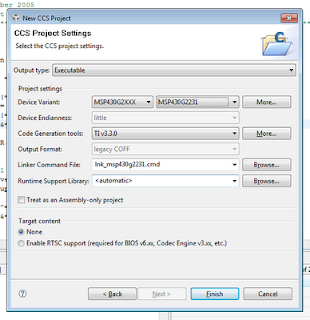
Under Device Variant select MSP430G2231 since this is still the device we are using. Now click Finish.

You can now see your new project set to active in the Project pane. Close out any files that are open then notice the MSP430G2231.ccxml file. This file, was generated automatically during our project setup; it tells the IDE which programmer and which chip we are using.

Right click on the project named "ToggleLED", create a New -> Source File, and name it "main.c". Copy and paste the code I showed above into the new "main.c" file.

Before we program the device we need to change a few lines of code. First change the include file again to "msp430g2231.h"; from now on I will not be mentioning this step or the project setup steps since you should now know how to do it from this post and my previous post. Also, the pin which is used for the button on the LaunchPad is P1.3 which is not the pin used in this code, so we need to change that. The hex value 0x08, or the binary value 0b00001000, is the value which is needed to modifty pin 3 in code. The pins start at 0 and go to 7 on each port.

Change the code to the following (it should be self explanatory which lines get changed):


P1IE |= 0x08; // P1.3 interrupt enabled
P1IES |= 0x08; // P1.3 Hi/lo edge
P1IFG &= ~0x08; // P1.3 IFG cleared

...

P1IFG &= ~0x08; // P1.3 IFG cleared

Now you can program the board; click the little bug and run your code like we did last post. To warn you, the program might be doing some weird things; sometimes when you press the button the light might not toggle, sometimes it will. This problems can be fixed with something caused debouncing. When we talk about timers I might explain how to add debouncing to this code. See the link above for more information.


Explanation of the Code

First the Watchdog Timer (or WDT) is disabled; this is the part of the chip which basically makes sure nothing is wrong or stuck. If there is something wrong with the uC it will reset the chip. See this link for a bit more info. Typically, most programs that you will write will start off by stopping the WDT.

Side Note: The website I linked to for more information about the WDT is a very good website for learning about the MSP430. Browse their tutorials if you get stuck with my simple explanations or want more information. I HIGHLY recommend these tutorials.

Back to the code. The next line sets the first bit in register P1DIR, which is what determines if a pin will be an input or output. This can be done for any of the pins on any of the ports, and must be done before using a port as an output.

P1IE |= 0x08; enables the interrupt for byte 3 in Port. Interrupts are one of the most important concepts to understand when writing code for embedded systems. For those of you with a programming background you can think of it like this: When writing a program that needs to run "indefinitely", you do not want to just write a simple infinite while loop in your main function but you would want to use threads which look for certain things and will then call functions you have defined depending on certain events. Notice how this piece of code does not have an infinite while loop, all it does is set up the chip then go to low power mode. The interrupt on P1.3 will cause the uC to wake up and call the specific function for that event which we have defined in the code. In this case that function is Port_1(). I will discuss this more when I provide an introduction to either the Timers or ADC peripherals.

Then we set how the pin will trigger an interrupt; in this case when P1.3 goes from high to low the interrupt is triggered. Clearing the interrupt flag before interrupts are enabled is very important, in case for some reason one of the bits was set when the device was turned on. One thing about microcomputers is that you can not rely on registers to be initialized 100% correctly. Some registers you can, but some you can't. I for one don't feel like looking through the data sheets to find out for all registers what the defaults are, so I will be coding safely when I supply my own code as long as it doesn't effect things negatively.

The rest of the code is pretty self explanatory; if your having trouble I recommend looking up the things you don't understand in the family User Guide or to look at the tutorials I mentioned above.


Whats Next?

Well, you know how to control LEDs and you know how to register input from buttons; so design something cool and test your knowledge. Start to hook up more LEDs to the board, use more buttons; you should buy a breadboard and some components if you don't have one. If there's enough interest I will write a quick post on prototyping with breadboards and components.

So, what are you going to do next? What kind of projects do you want to build? What are you struggling with? Comment away.

Sunday, July 18, 2010

Some News about the LaunchPad

So I have a quick update about the LaunchPad. TI has finally posted the LaunchPad User Guide on their website; oddly enough it is not on the Wiki yet. They also posted a white paper on the LaunchPad but is not really worth the read if you already have your LaunchPad. I do recommend reading the User Guide though, some interesting things in there.

A few quick comments about the LaunchPad. I have verified that you can just plug the MSP430F2013 into the socket on the board and it works perfectly. They also mentioned this in the User Guide. One thing I am not too happy about is that you can not disconnect ground between the programmer and the target side. Not too big of a deal, but I don't like it.

Also, has anyone else been having trouble with the pdf files from TI? I keep getting some weird errors pretty consistently. Its possible its just me though.

Expect a follow up article to my Getting Started Guide soon. I will be discussing the use of the pushbuttons and will explain the code a bit. From this point on the blog will alternate between news, beginner guides, and advanced topics. Feel free to let me know if there is a topic you would like me to write about.

Thursday, July 15, 2010

My Version of Getting Started

So, with a bit of playing around I have my LaunchPad blinking happily and I am going to show you how I did it. People who really know there stuff might not like how I’m doing this, but we will progress to creating our own project from scratch soon.

Before we start I’m going to say right now the demo temperature sensing program TI provides is hard to work with when starting an example project. It’s cool since it shows off what the chip can do, but it's hard to work modify. Also, I will be using Code Composer Studio because it has a larger program size limit that IAR. This doesn't matter with the current chip, but it will for others I will use in future posts.

Step 1 – Installation and Example Code

Download and install Code Composer Studio. If you are using Windows 7 like I am make sure you don’t install it under Program Files, and install it somewhere like “C:\Texas Instruments”. Also, you probably don’t need to do this, but I kept my LaunchPad unplugged while I was installing everything.

Download the test project “MSP-EXP430G2-Launchpad” and unzip it to a temporary folder such as one on your desktop.

Download the “MSP430F20xx, G2x01, G2x11, G2x21, G2x31 Code Examples” and also unzip it to your documents somewhere. This is the sample code we will be using, and not the example project with the stupid temperature sensing UART thing.

If my links don't work, all of this is linked under the LaunchPad Wiki.

Step 2 – Load the Project and Set it Up

Run CCS and you will be prompted where you want to put your workspace. Within one workspace you can have multiple projects so I recommend making a directory where you will keep all your different projects code. I chose to use this directory as default but you don’t have to.

Close the Welcome window.


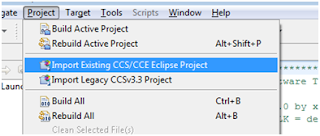
Now we are going to import the project. Go to Project --> Import Existing CCS/CCE Eclipse Project.


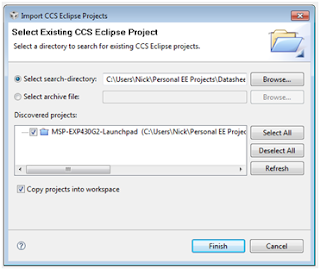
The MSP-EXP430G2-Launchpad project will show up, check the “Copy projects into workspace” and then click Finish.

On the left under the project box expand your project, and you’re going to want to delete “test_RX.c.old”. We won't be using it.

Double click on the file “MSP430F2012.ccxml”. This is the file which lets the compiler know which devices your project is being loaded on to. Click “Do not show this again” on the stupid Cheat Sheet thing on the right that popped up.


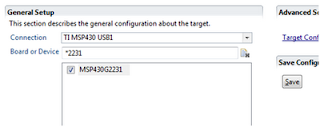
Type “*2231” in under the Board or Device, and then check the MSP430G2231. There is a chance that you might not need to do this, but I am a fan of selecting your device just in case, just one less thing to worry about being wrong. Again, I have no idea why they had this chip selected. I assume that you are using the chip that came plugged into your LaunchPad for now. In later tutorials we will be changing this to program different chips using the SBW. Click “Save Configuration”.

To keep ourselves sane, rename the .ccxml file according to “MSP430G2231”.

Now go to Project, and hit “Clean…”. I like to do this when I make any huge property changes, again this might not be necessary but follow me for now. A warning will pop up, continue to clean the project.

Step 3 – Use the Real Test Program

Open up main.c, you will now see a huge program that’s poorly commented. I’m still young, and hate commenting my code, but everyone should suck it up and do it. That is one of the most important things I feel everyone must do when writing code, comment well.

Under the code examples we downloaded before, under the folder named “C” there should be a file named “msp430x20x3_1.c”. Open this file in notepad or whatever editor you use. Copy all the code. Then past it into our main.c file after removing all the stupid temperature project code.
The comments at the start of the code should look like this. (My formatting is all messed up, I know. I just wanted to post this quickly, I can edit the fonts later.)

//******************************************************************************
// MSP430F20xx Demo - Software Toggle P1.0
//
// Description; Toggle P1.0 by xor'ing P1.0 inside of a software loop.
// ACLK = n/a, MCLK = SMCLK = default DCO
//
// MSP430F20xx
// -----------------
// /|\| XIN|-
// | | |
// --|RST XOUT|-
// | |
// | P1.0|-->LED
//
// M.Buccini / L. Westlund
// Texas Instruments, Inc
// October 2005
// Built with CCE Version: 3.2.0 and IAR Embedded Workbench Version: 3.40A
//******************************************************************************

This code is very nice and simple and is pretty well commented. What it does is toggle P1.0 which in this scenario, will blink an LED on the LaunchPad.

One thing we will need to change (which again, we might not have to, but I like to keep these things as correct as possible) is the #include header file.

Change it to this:
#include "msp430g2231.h"

Step 4 – Programming the LaunchPad

Now we are going to program the LaunchPad, but before we do I have a few comments. It seems like the pictures and schematics they provide on the LaunchPad Wiki site are a bit wrong. P1.0 is connected LED 1, which is Red. This is the LED we will be toggling. If it is green on your board, or anything else is funky or different, please post and let me know.

We now should plug in the LaunchPad, hopefully all your drivers install automatically because mine did. If you are using Windows XP I think you have to direct the installer to the files under the CCS install directory. Good luck.

The LaunchPad should have at the very least the power LED lit showing the device is powered and ready to go, you might have some blinking LEDs or something from what is already stored on there.


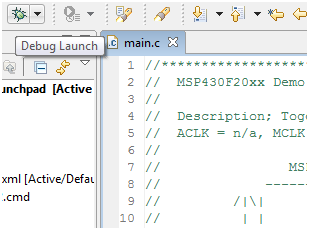
Click the little bug near the project menu called “Debug Launch”. A window should pop up which is compiling your code, and then a debug session should open up. If you have any errors either something is wrong with your driver, you didn’t follow my instructions correctly, or something else entirely. If you are having trouble, feel free to comment.

Nothing should be happening on the board yet though. What we want to do is now click Run, which will start the program on the LaunchPad. Now look down at the LED.

Congratulations, you have a blinking “Hello World” program working!

Step 5 – Modify and Have fun

Change the “i” value in the code to change how quickly the LED blinks, the bigger the number the longer the LED will stay on and off. You can also change the port to P1.6 to blink the other LED. Next blog post I will explain the code, and fun ways to modify it.

As always, comment away. If I have typos, formatting errors, or some wrong information please let me know. Hopefully this worked for you and I hope you’re now having fun with your LaunchPad.

-NJC

My LaunchPad is Here!!!!

Quick update post, my LaunchPad is here! Can't wait to get home to play around with it! Expect a Getting Started guide soon which will walk you through programming the device, no theory will be covered in that post. A bit of theory will come later.

For anyone who is interested (and speaks German or can use Google Translator), I found a really good website about the MSP430 with some VERY interesting application notes using a VERY cool custom dev board. If anyone can find a place to buy this board, let me know. From what I've read, they are not selling their board. They also have some information on getting an MSP430 up and running on Linux using GCC which might be the best tutorial for doing this. I know there's a few of you from Germany from my Google Analytics report, if anyone knows of any other good resources in other languages, post away! Just so everyone knows though, Google Translator messes up quite a lot with grammar when translating German, so just keep this in mind.

YAY LAUNCHPAD! :-D

Next post coming soon...